SFTP with Bitvise: moving files securely from and to Windows
SFTP is what replaced FTP in most US organizations, and Windows users meet it from both directions — pushing a build to a remote host, or receiving nightly files from a partner. Bitvise covers both ends, so this page splits into the client side and the server side.
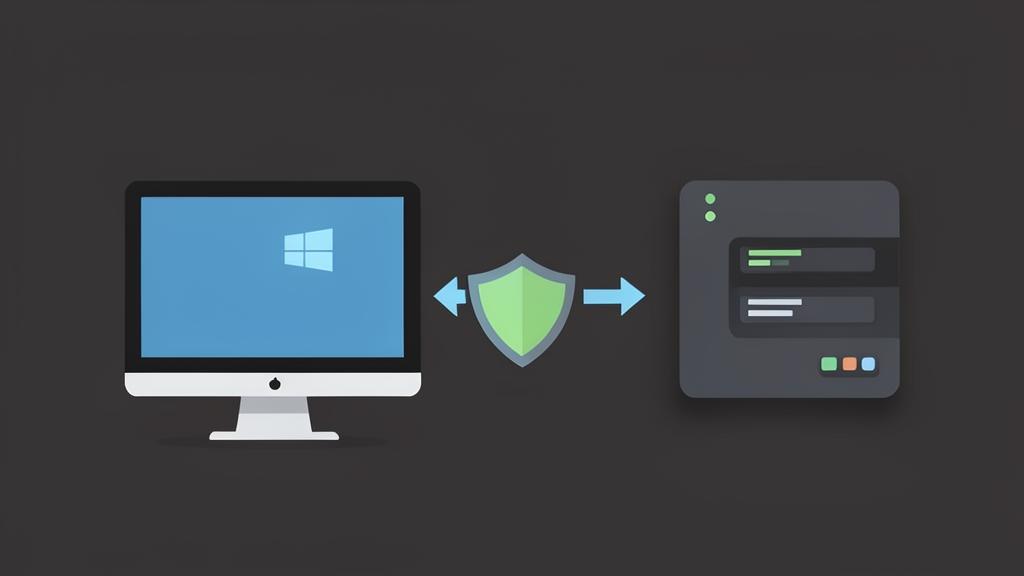
Client side: the transfer window
Open the SFTP window from the Bitvise SSH Client after logging in. Local folders sit on the left, the remote tree on the right, and transfers land in a queue you can pause. Practical habits:
- Bookmark the remote directories you visit weekly.
- Turn on overwrite confirmation before touching a shared drop folder.
- Use the queue rather than dragging one file at a time when uploading a release; it retries failures on its own.
Automating transfers with sftpc
The command-line client reads a saved profile and a script, which makes it a good fit for Windows Task Scheduler:
sftpc profile.bscp -cmdFile=nightly.txt -unat=y
Keep the profile's key file in a folder only the service account can read, and log output to a dated file so a failed run is obvious the next morning.
Server side: publishing an SFTP service
When outside parties need to drop files onto your Windows machine, the Bitvise SSH Server exposes SFTP alongside SSH and SCP. The controls that matter most:
- Virtual filesystem roots that pin each account to its own folder.
- Per-account permission to use SFTP but not a shell.
- IP-based blocking after repeated failed logins.
- Logging that satisfies an audit trail requirement.
Other SFTP options on Windows
PuTTY's psftp.exe handles text-mode transfers if you only need occasional file copies, and Windows itself ships an OpenSSH-based sftp command. The SFTP on Windows guide compares all three approaches with real command examples.